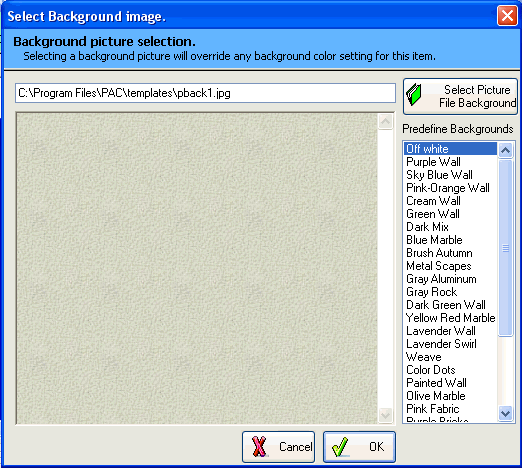
Adding Background Image
To add the pictures as the background image for your CD catalog, please follow the steps below.
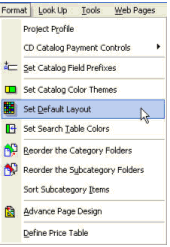
1. Select the [Set Default Layout] from the [Format ] menu.
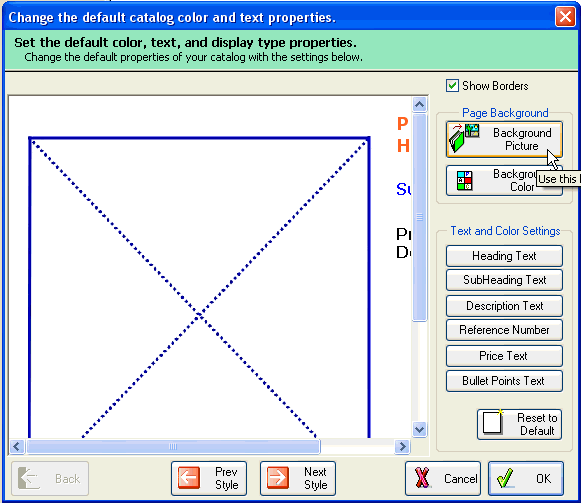
2. Click the Background Picture button while in the dialog.
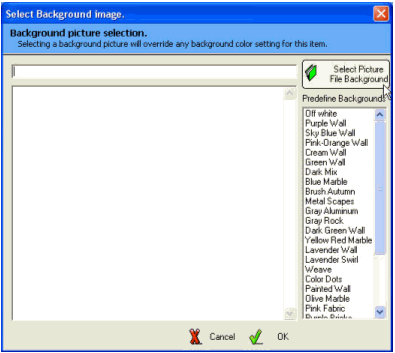
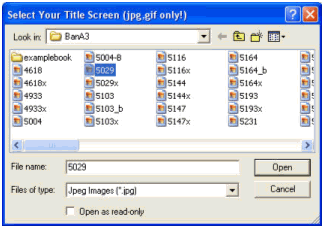
3. Select your background picture by clicking on the [ Select Picture File Background ] button to find the image you want to use.
4. After you have selected the picture the screen will appear with the background image (see imaget below). I used your logo in this image as an example so that you can see that it is possible.
This background image will appear on every page as the default background image, you do have the ability to change the background image on individual pages.