
Image Gallery
Adding multiple images for a product.
If you have multiple images for the same product you can include those additional images for the current product. This gives your customers more visual detail about the item. For example, if you have an item that comes in different colors you can include an image of each color as part of the Gallery.
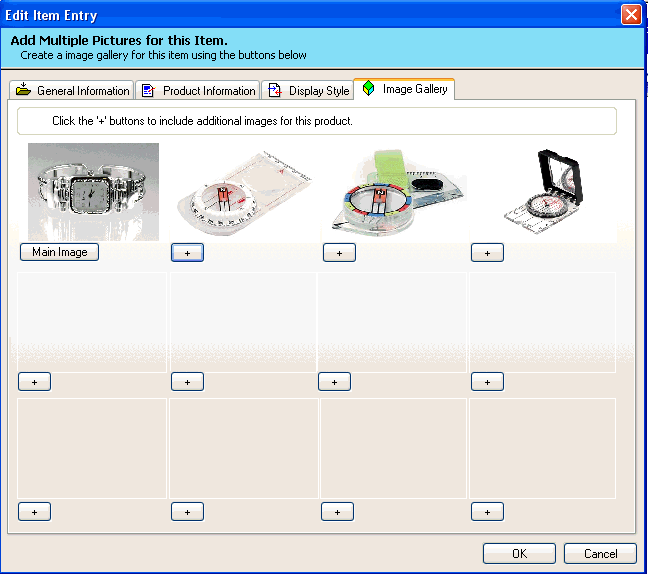
The image gallery has the main image for the product plus up to 11 additional images for a total of 12 images for each product.
To create an image gallery for a product, do the following:
1. From the Edit Item Entry, select the Image Gallery Tab.
2. Click the PLUS button insert a new image.
3. After you have entered all your images, click OK to continue.
Note: A maximum of 4 images are available to the gallery in the Home Edition of the software.
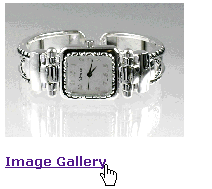
How to access the image gallery of a product.
If an image gallery is available for a product the software will display a link labeled "Image Gallery".
To access the image gallery for a product, move the mouse over the link and press the right mouse button.
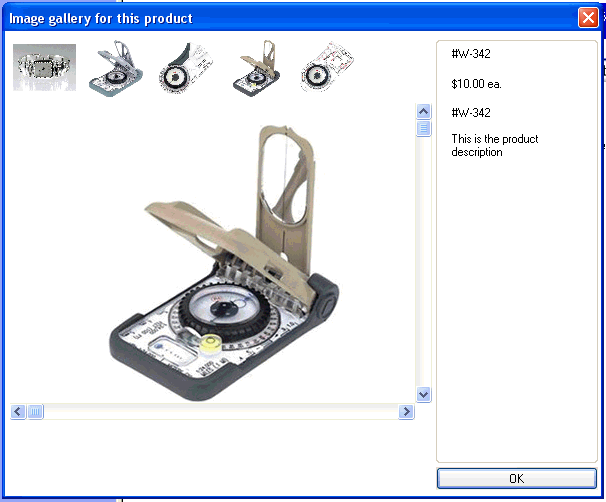
The image gallery dialog will appear with thumbnails of all available images within the gallery. The thumbnail images will expand once selected using the mouse pointer. (Point and Click).
Notes on image gallery:
- It is not necessary to have an image gallery for every item.
- Image Gallery are currently available for the CD catalog only. Web and Printed catalogs will only use the main image.