
Printing in Fix Formats
Item list Verification before printing:
Before you print, it is a good idea to perform an Item list verification from the Tools menu.
This will warn you of any missing files or other errors that may exist within
the list of products. See Item List Verification.
Selecting Basic Print Formats
The Home Edition of this software provides four basic print formats 3,4,6, and 9 items per page.
Additional formats are available within the advance versions of the software including user define page formats.
You may print or create a PDF file using Print Job Control dialog and other facilities within the software.
To print from the Print Job Control dialog select one of the four possible formats.
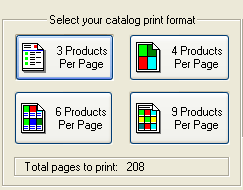
You may need to print the table of contents in order to view the correct products within a range of pages.
To print the table of contents for the selected catalog format, click the Print Table of Contents button.
Continue by selecting the page range within the list box then click the Print Preview Selected Range button.
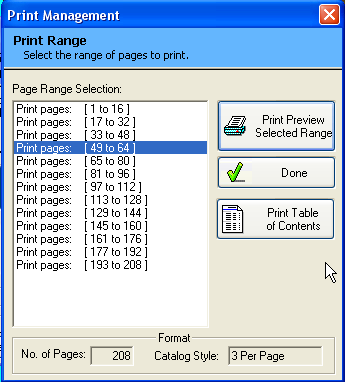
Wait for the Print Preview window before continuing.
Note: Printing selected ranges will allow you to make any last minutes changes to section of the
catalog without wasting paper or time.
Color Management for Print Preview:
When previewing the images on a fix size catalog page, the colors of the images may be offset or distorted.
This has to do with the video memory of your computer system and the amount of images your catalog contains.
Do not be concern about the color of the images while on the preview page.
Some video cards may not be able to display a picture in full color in this mode. When you print or convert the catalog pages to a PDF document, the correct colors for all images will appear.
To get the true color of the items, print a page or create a PDF file.
Adding your company logo to the header of each page:
Use a graphic editor to create a JPEG image file with the following dimension: 1000 width by 50 height in pixels at 72 dot per inch.
The image file may contain your company logo or any other information to represent the header of your catalog pages.
To add the image file to the header section of your catalog, use the browse button next to the header field.

New Print Formats:
To request additional print formats contact support@chronsystems.com.
Basic catalog and report formats can be added within days.