
Assigning Labels to Items
Assigning labels to hide the file path to an item.
When creating a product catalog you will need to hide the path name of the picture or document files.
CatalogVX gives you the ability to add labels to individual item references on the item list.
A label will allow you to turn a path name into a descriptive text.
For example: You are able to turn the file path of "C:\My Document\mypicture.jpg" into "My picture at the beach".
Note that the label will only exist within the item list; the real file name is not changed after you have assign a label.
Follow the instructions in this section to add labels to your items.
To add a label to an item do the following:
1) Select the item from the list.
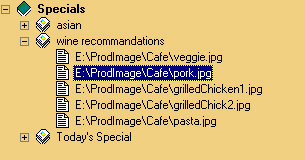
2) Press Ctrl + L or use the menu Edit/Assign Labels.

3) In the Label Dialog enter the name of the label you wish to add to the item and press the OK icon on the lower
right.
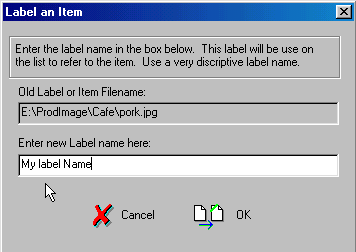
This will add your new label to the selected item. You will notice that the file name on the item list has been replace by the name of the label.